Customer messages your WhatsApp number
They find your number on Google, Instagram, your website, or a QR code at the table. They tap it — WhatsApp opens. They say “Hi.”
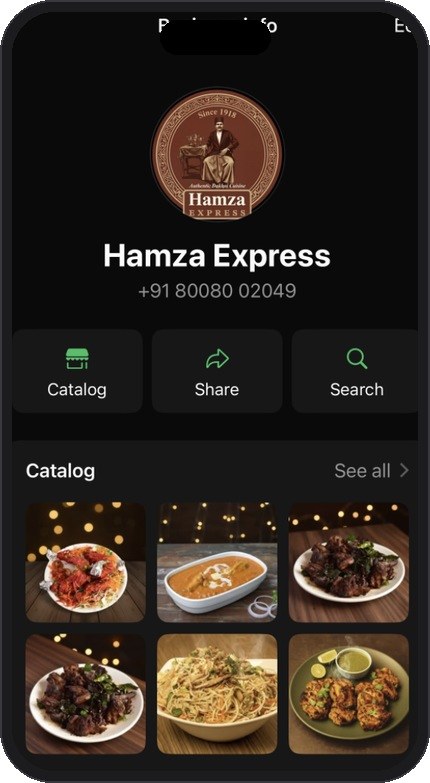
Your business profile on WhatsApp
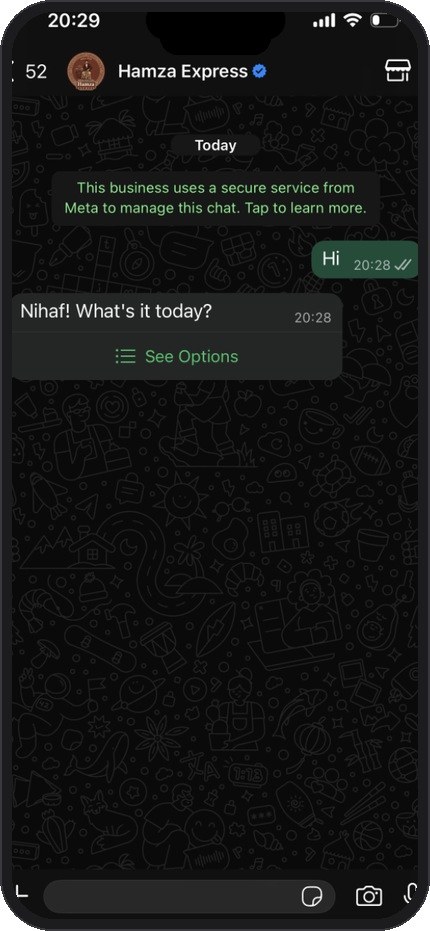
Customer says Hi — instant reply
They see their options — Order, Book a Table, Track
The bot replies with clear options. The customer taps “Order & Pickup” to browse the menu. Or “Book a Table” to reserve. No confusion.
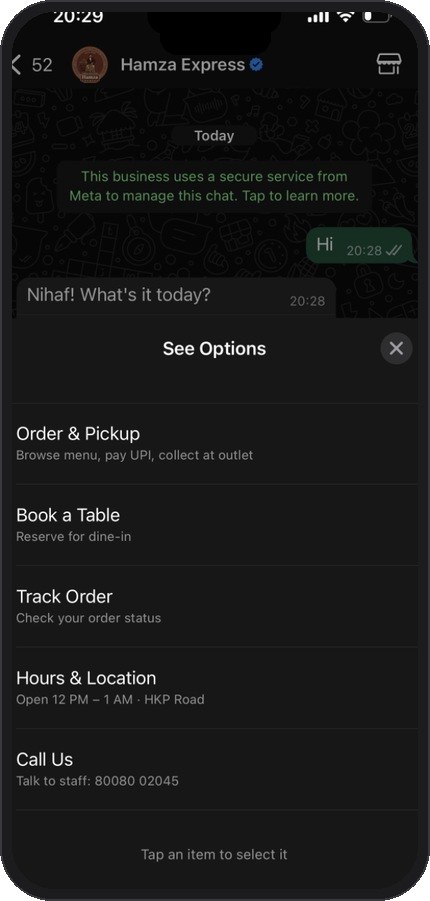
Clear options — no typing needed
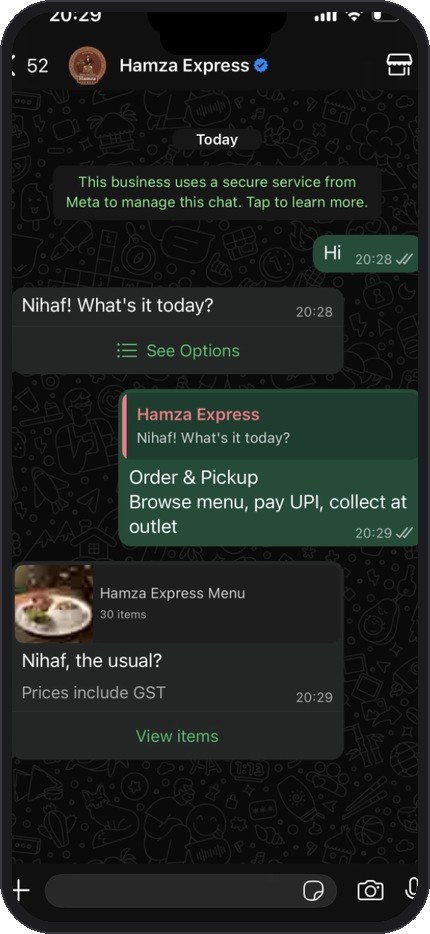
Taps “Order” — your menu appears
They browse your menu with photos and prices
Your full menu shows as a product catalog inside WhatsApp. Categories (Starters, Curries, Biryani), photos of each dish, prices. They tap an item to see details and portion options.
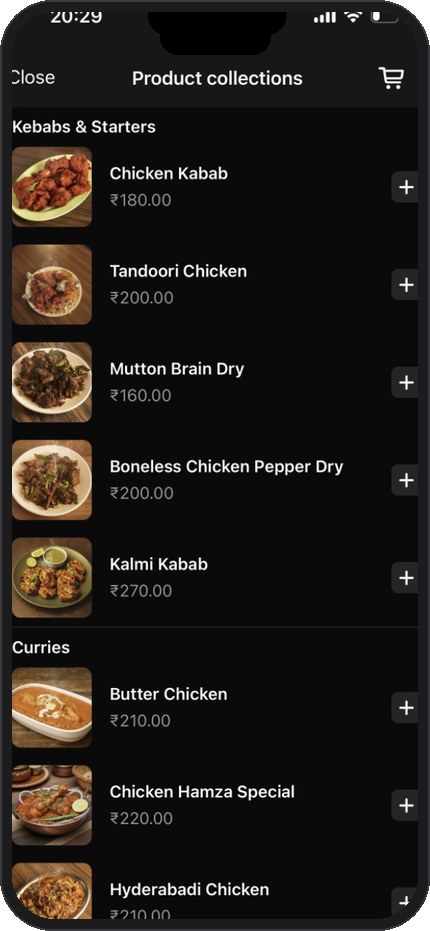
Menu with photos & prices
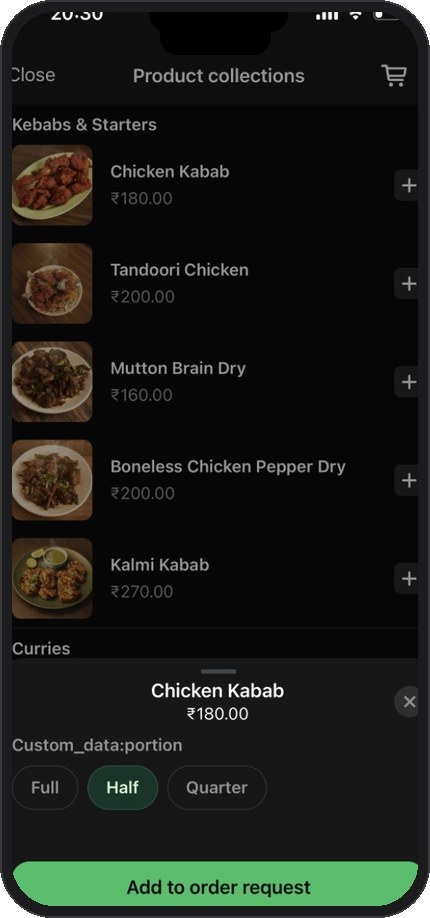
Tap item — pick portion, add to cart
They review cart and place the order
The cart shows everything they’ve added with the total. One tap — “Place order.” The order goes to your system immediately.
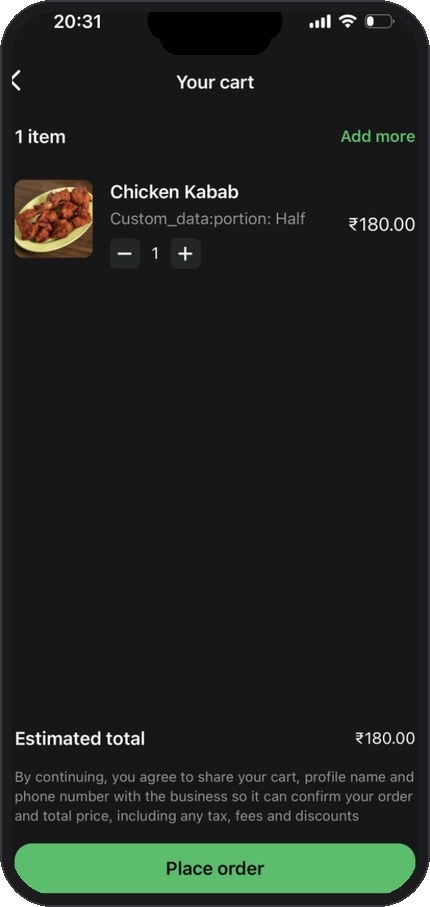
Cart with total — one tap to order
Order confirmed. Payment link sent. Done.
The customer gets an order confirmation in the chat with their order number, items, and total. They tap “Review and pay” to pay via UPI, card, or net banking through Razorpay.
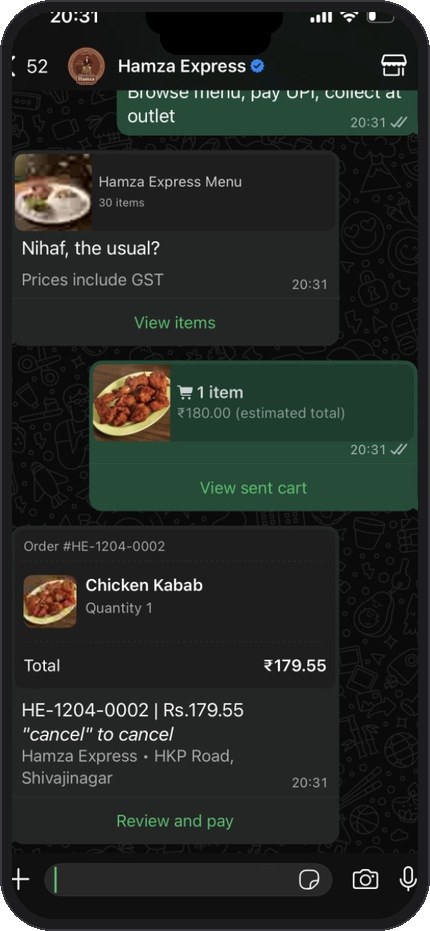
Order confirmed — tap to pay
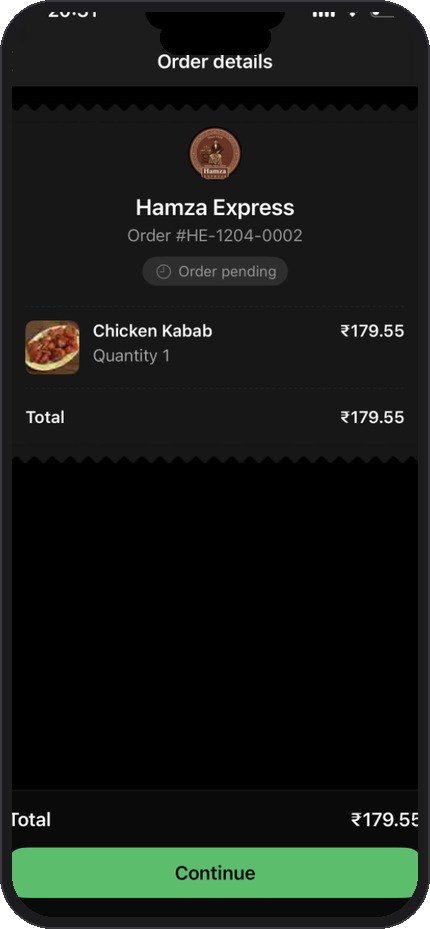
Payment via UPI, card, or net banking
They pay using UPI, cards, or net banking
Customer taps “Review and pay” and gets the Razorpay payment screen. GooglePay, PhonePe, Paytm, WhatsApp Pay, cards — all options. Payment goes directly to your bank account.
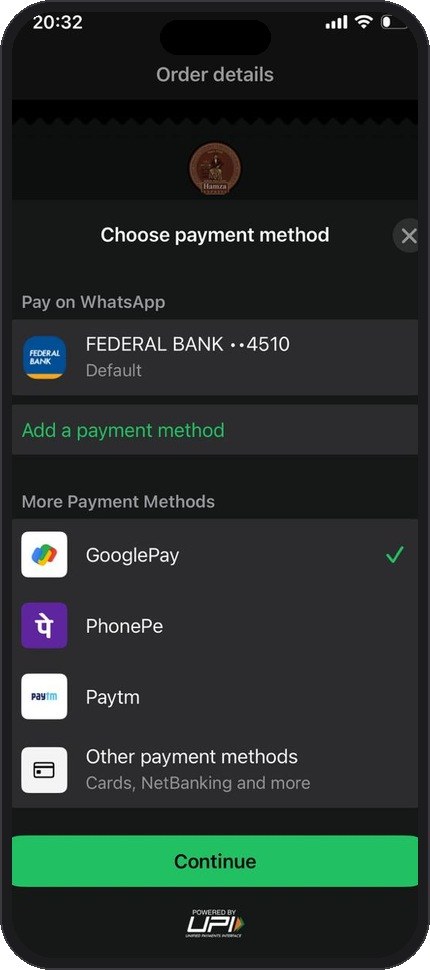
Real payment screen — GooglePay, PhonePe, Paytm, cards. Money goes to your bank.
How much you save vs Swiggy
Real math. Not theory.